How to Change the BPM of a Song
To change the BPM of a song in Backtrackit, play the track, tap the BPM number in the player, scroll the Shift Tempo wheel to the speed you want, and tap Close. The key stays the same, and you can tap Reset at any time to go back to the original tempo.
Quick facts
- App
- Backtrackit (iOS, Android)
- Where
- Player → tap the BPM number next to the key
- Control
- Shift Tempo wheel
- Key
- Stays the same when you change the BPM
- Undo
- Tap Reset to return to the original tempo
- Time
- Under a minute
- 1
Play a track
Open any backing track or a song from your library and press play. At the bottom of the player, a pill shows the track's key (here Emin) and its BPM (here 96).
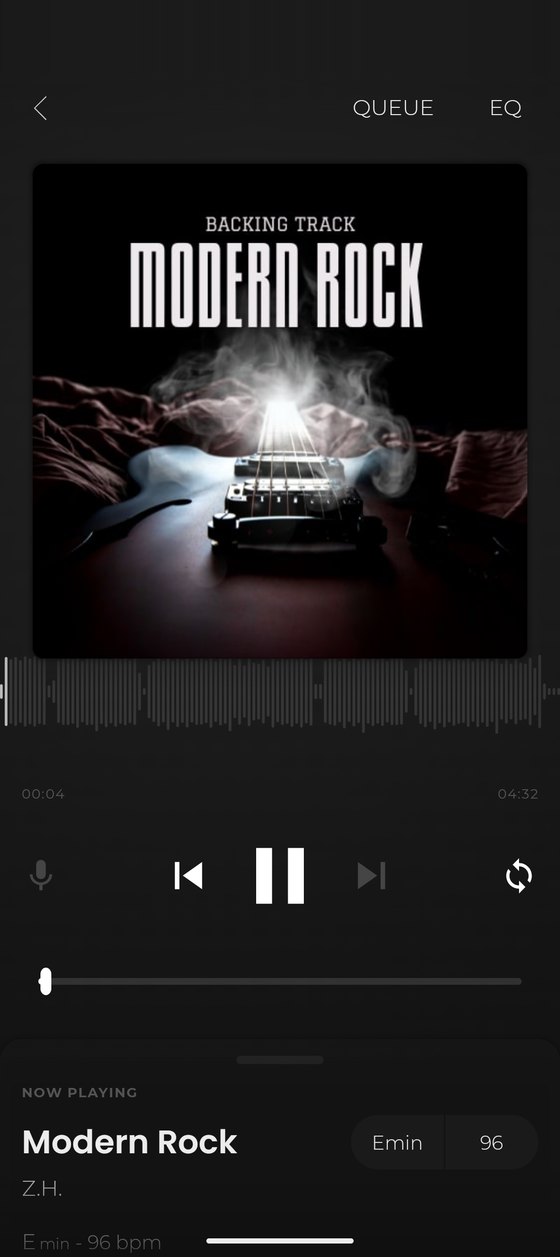
Step 1: The key and BPM sit in a pill at the bottom of the player. - 2
Tap the BPM number
Tap the BPM on the right side of the pill. The Shift Tempo screen opens, with the current tempo in the middle of a scroll wheel.
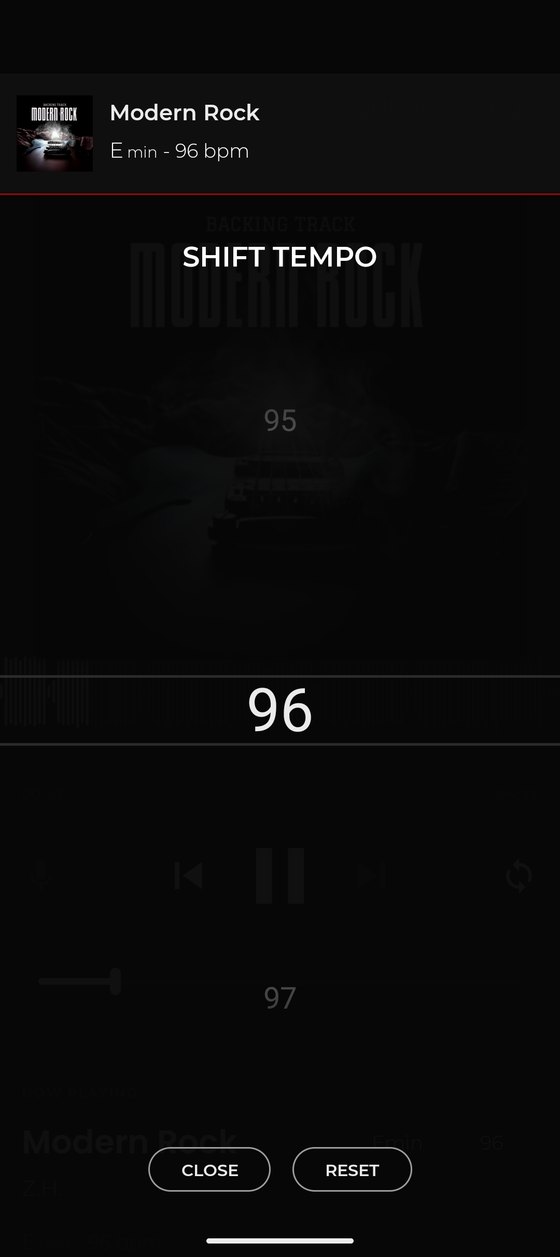
Step 2: The Shift Tempo wheel opens at the track's current BPM. - 3
Scroll to the BPM you want
Drag the wheel up or down until the tempo you want is in the middle. In this example a 96 BPM track is slowed down to 80 BPM. The song keeps playing behind the picker. If you're learning something tricky, a drop of 15–20% is a good place to start.
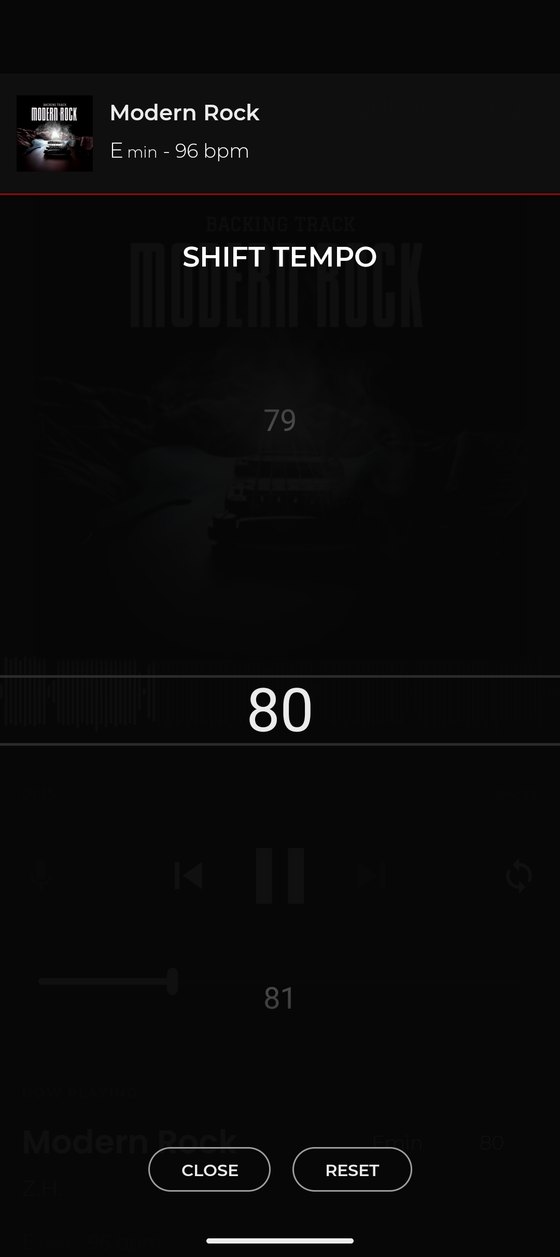
Step 3: Scroll the wheel to your target BPM. Here, 80. - 4
Tap Close
Tap Close to return to the player. The pill now shows the new BPM and the track plays at the new speed. The original tempo stays listed under the song title (E min - 96 bpm), so you always know where you started. To undo the change, open Shift Tempo again and tap Reset.
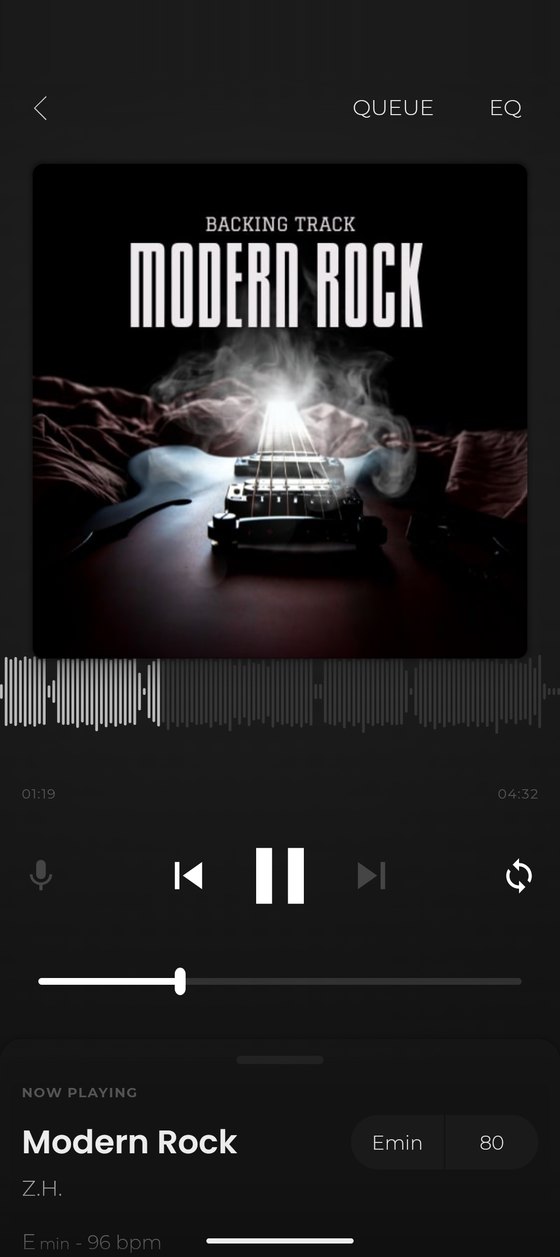
Step 4: The pill shows the new BPM. The original BPM stays under the title. - 5
Change the key too (optional)
Tap the key (Emin) instead of the BPM to open Shift Key, which works the same way. Key and tempo are separate controls, so you can slow a song down without changing its pitch, or transpose it to suit your voice or tuning without changing the speed.
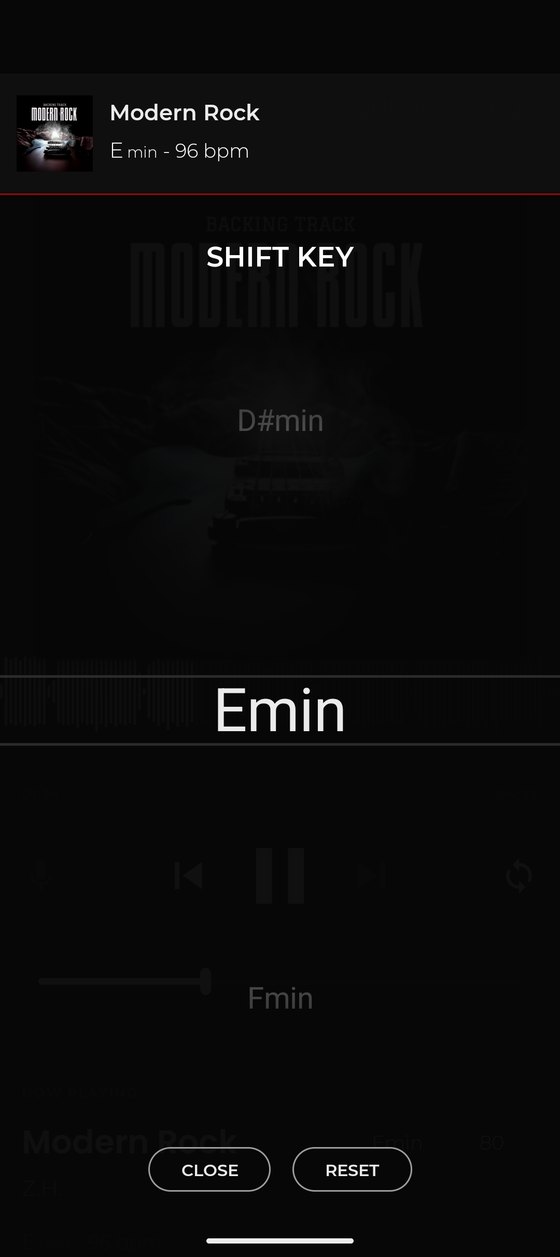
Step 5 (optional): Tap the key to open Shift Key.
Tips for practicing at a different tempo
- Learn a fast passage at about 60–70% of the original speed. Once you can play it cleanly three times in a row, raise the BPM by about 5 and repeat.
- Slow down only as far as you need. Playing at a tempo where you make no mistakes builds muscle memory faster than struggling at full speed.
- Pick backing tracks by tempo. Every track card shows its key and BPM (for example E min - 96), so you can find tracks that already match your speed.
- Use Reset to jump back to the original tempo when you want to test yourself at full speed.
Frequently asked questions
How do I change the BPM of a song in Backtrackit?+
Play the track, tap the BPM number in the player, scroll the Shift Tempo wheel to the BPM you want, and tap Close.
Does changing the BPM change the pitch or key?+
No. Tempo and key are separate controls in Backtrackit. Changing the BPM leaves the key unchanged, and changing the key leaves the tempo unchanged.
How do I slow down a song to practice?+
Open Shift Tempo from the player and scroll to a lower BPM. Start about 15–20% below the original tempo, then raise it in small steps as you improve.
How do I go back to the original BPM?+
Tap the BPM number to open Shift Tempo, then tap Reset. The original tempo is also listed under the song title in the player.
Can I change the tempo of my own songs?+
Yes. Tempo and key controls are part of Backtrackit's player, so they are available for backing tracks and for songs you play from your library.
Related guides
Slow down any song in the app
Download Backtrackit and change the tempo and key of any track, so you can learn tricky parts at a speed that works for you.