How to Change the EQ of a Song
To change the EQ of a song in Backtrackit, play the track, tap EQ at the top right of the player, drag the band sliders up to boost or down to cut, and tap Save. Tap Set as default to keep that EQ as your default setting.
Quick facts
- App
- Backtrackit (iOS, Android)
- Where
- Player → EQ (top right)
- Controls
- Band sliders from bass (left) to treble (right), plus Bass Boost and Volume on Android
- Saving
- Save to the selected EQ slot, or Set as default
- Undo
- Reset returns the sliders to flat
- Time
- A few minutes
- 1
Play a track and tap EQ
Open any backing track or a song from your library and press play. In the top-right corner of the player, next to Queue, tap EQ.
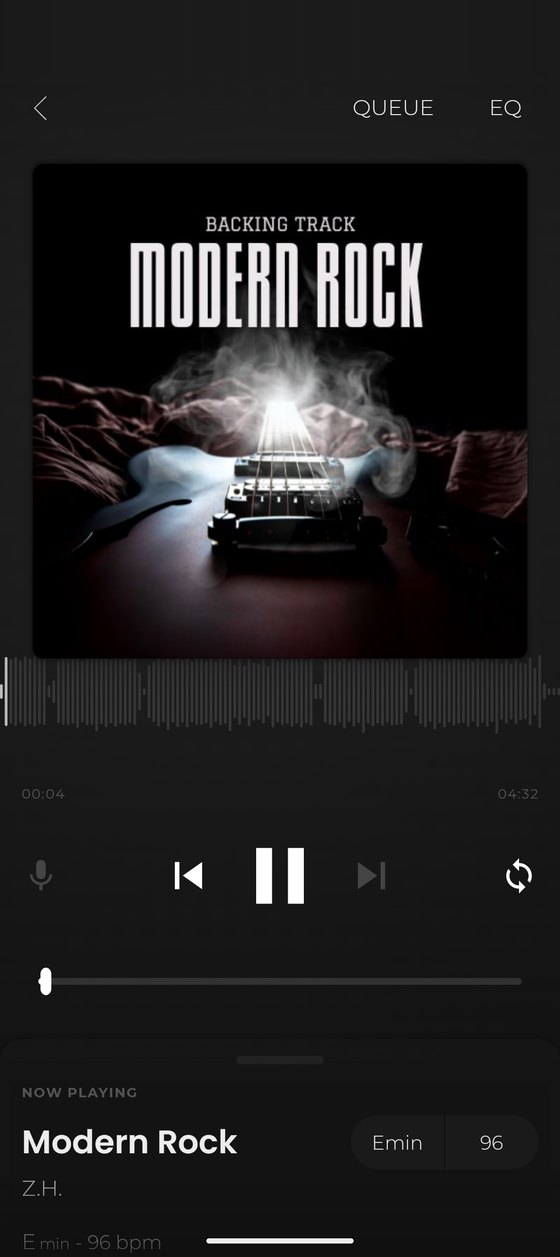
Step 1: Tap EQ in the top-right corner of the player. - 2
Meet the equalizer
The equalizer shows a row of sliders. Each slider controls one range of frequencies, from bass on the left to treble on the right. All sliders in the middle means flat: no change to the original sound. The switch at the top right turns the EQ on or off.
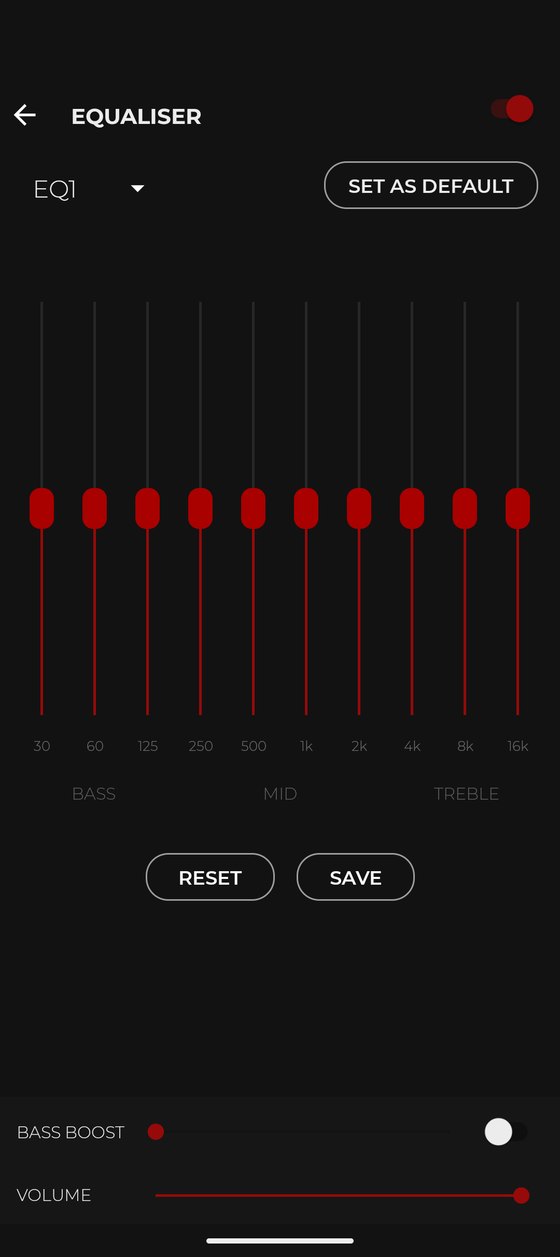
Step 2: A flat EQ. The Android screen has ten bands from 30 Hz to 16 kHz. - 3
Choose an EQ slot
Tap the dropdown at the top left (EQ1) to switch between EQ slots. Each slot keeps its own settings, so you can set one up for practicing with a bright backing track and another for a bass-heavy one.
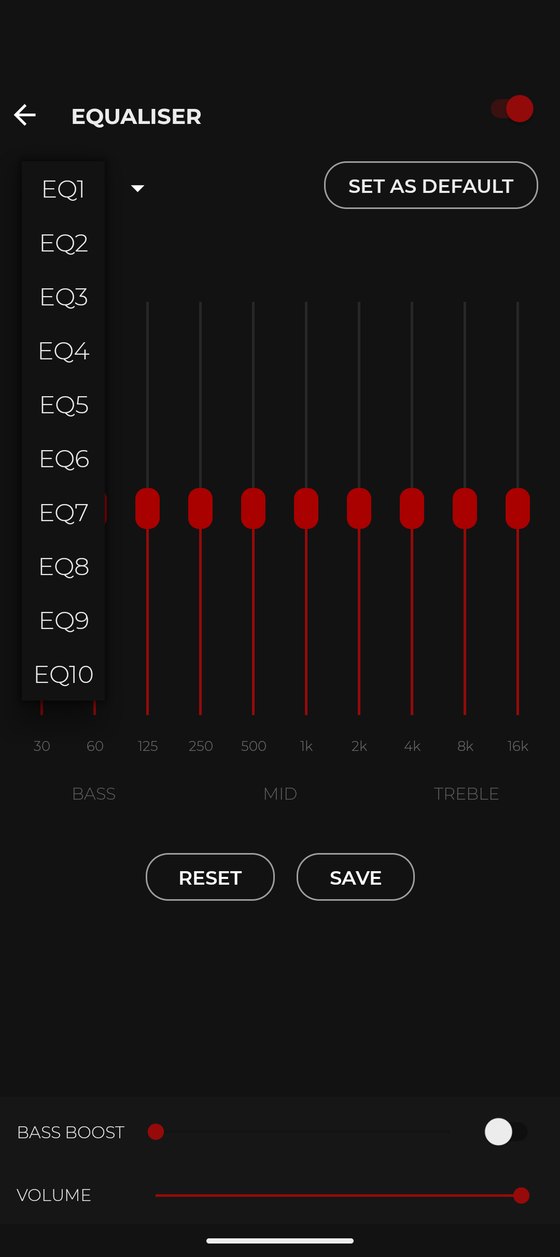
Step 3: Pick a slot. The Android app has EQ1 through EQ10. - 4
Drag the sliders to shape the sound
Drag a slider up to boost that range, or down to cut it. In this example the bass and treble are lifted and the low mids are pulled down, a classic punchy curve. Small moves go a long way, so listen as you adjust.
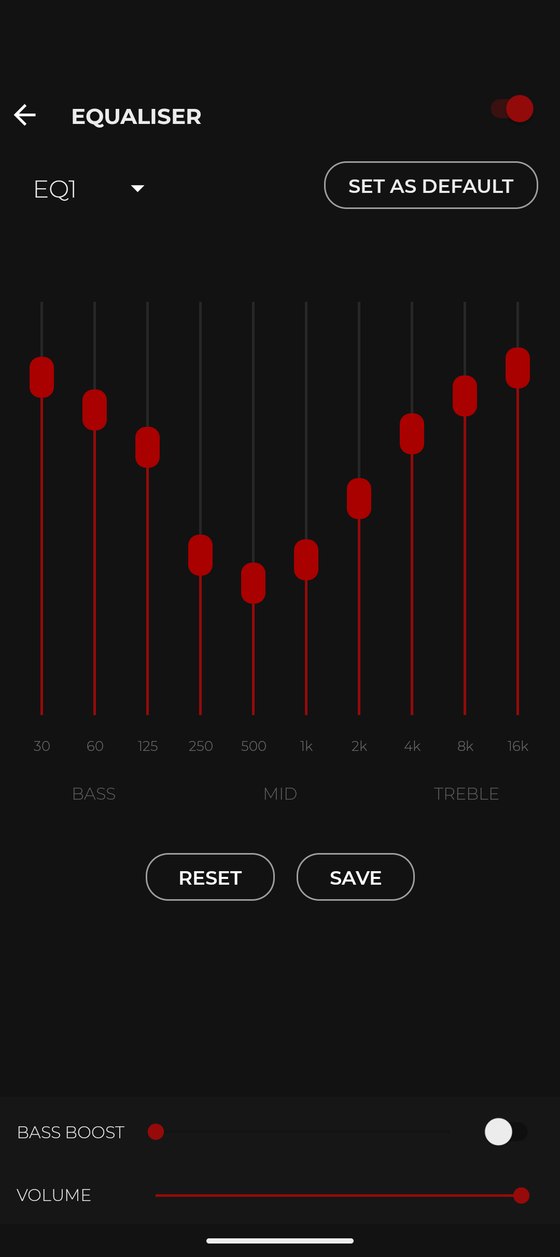
Step 4: Boost the bass and treble, and cut the mids. - 5
Tap Save
Tap Save to store your settings in the selected slot. A message confirms it (EQ1 saved). Tap Set as default if you want that EQ to be your default setting. Tap Reset any time to put the sliders back to flat.
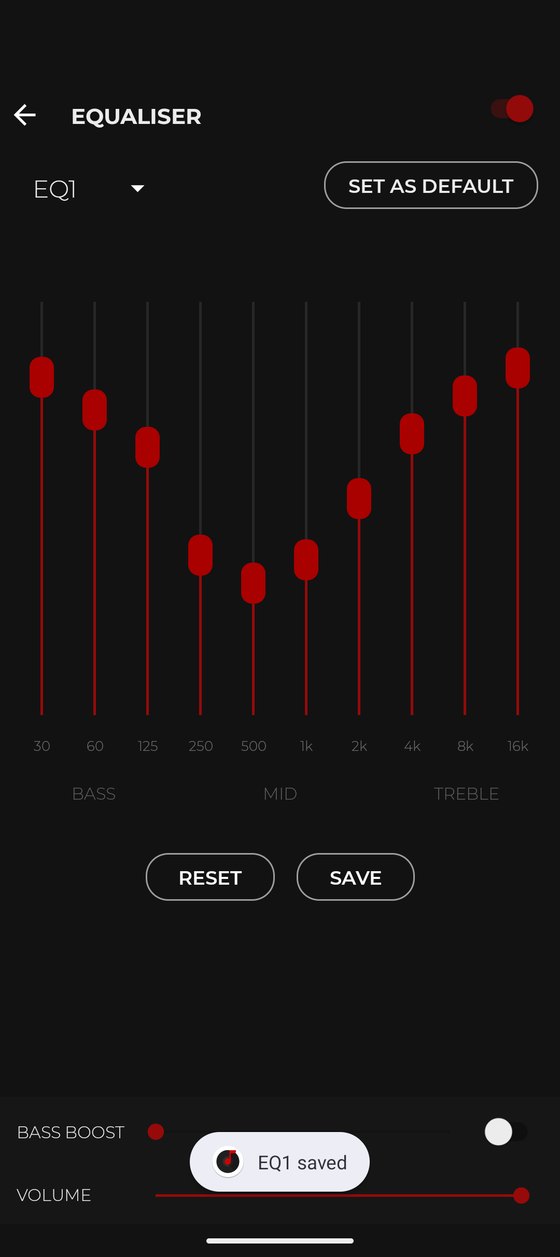
Step 5: Save your EQ. You'll see a confirmation.
EQ tips for practice sessions
- Start with small changes. A few steps up or down is usually enough, and pushing sliders to the limit can cause distortion.
- If a backing track sounds muddy, lower the low-mid sliders (around 250–500 Hz). If it sounds dull, lift the high sliders (above 4 kHz).
- Playing along on guitar? Cutting a little of the mid range on the track can leave more room for your own instrument to be heard.
- Save a different EQ slot for each situation (headphones, speaker, bass-heavy tracks) and switch between them from the dropdown.
- If the sound distorts, lower the sliders or the Volume control, or turn the EQ off with the switch at the top right. The Android app also shows a one-time notice that the equalizer can cause distortion on some devices.
Frequently asked questions
How do I change the EQ of a song in Backtrackit?+
Play the track, tap EQ at the top right of the player, drag the sliders up to boost or down to cut, and tap Save.
Does the EQ change my audio files?+
No. The equalizer only changes how audio sounds while it plays in Backtrackit. Your original files are not modified.
How do I boost the bass?+
In the equalizer, raise the sliders on the left side (bass). The Android app also has a Bass Boost switch at the bottom of the equalizer screen.
Can I save more than one EQ?+
Yes. Each EQ slot stores its own settings. Choose a slot from the dropdown at the top left, adjust the sliders, and tap Save.
How do I reset the EQ to flat?+
Tap Reset on the equalizer screen to put all sliders back in the middle.
Related guides
Shape your sound in the app
Download Backtrackit and tune the EQ of any backing track or song until it sounds right for your practice setup.