How to Create a Playlist of Tracks
To create a playlist in Backtrackit, open the Library tab, tap Playlists, tap the + button, name your playlist, and tap Create. Then add backing tracks from any track's menu, or songs from your own library with the + button inside the playlist. To use your own songs, allow Backtrackit to access music and audio on your device so it can scan them.
Quick facts
- App
- Backtrackit (iOS, Android)
- Where
- Library tab → Playlists
- Time
- Under a minute
- What you can add
- Backing tracks from any collection, and songs from your device library (requires media permission)
- Manage
- Rename, duplicate, or delete a playlist from its menu on the Playlists screen
- Play modes
- In order, or shuffled
- 1
Open Library and tap Playlists
Open Backtrackit and tap Library in the bottom navigation. Your music is organized in a list: Songs, Artists, Albums, Playlists, Split Tracks, Favorite BTracks, Keys, Tempos, and Loops. Tap Playlists.
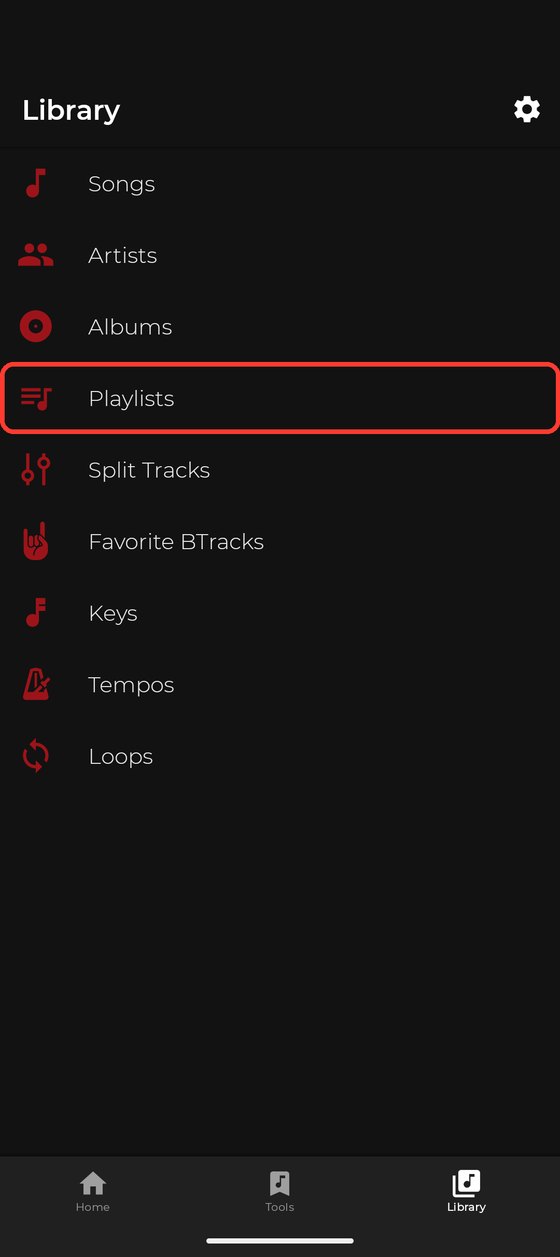
Step 1: Open the Library tab and tap Playlists. - 2
Tap the + button
If you haven't made a playlist yet, the screen says No Playlists. Tap the red + button in the bottom-right corner to create one.
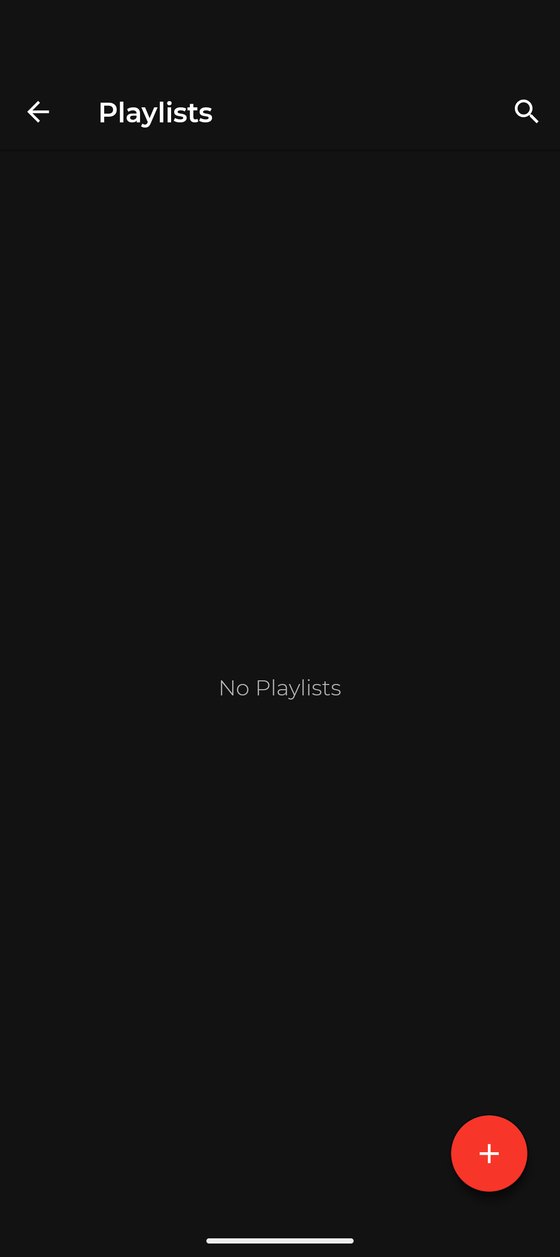
Step 2: Tap the red + button to create your first playlist. - 3
Name your playlist and tap Create
Type a name that describes what you're practicing, such as Rock Practice, Blues in A, or Slow Warm-ups. Then tap Create.
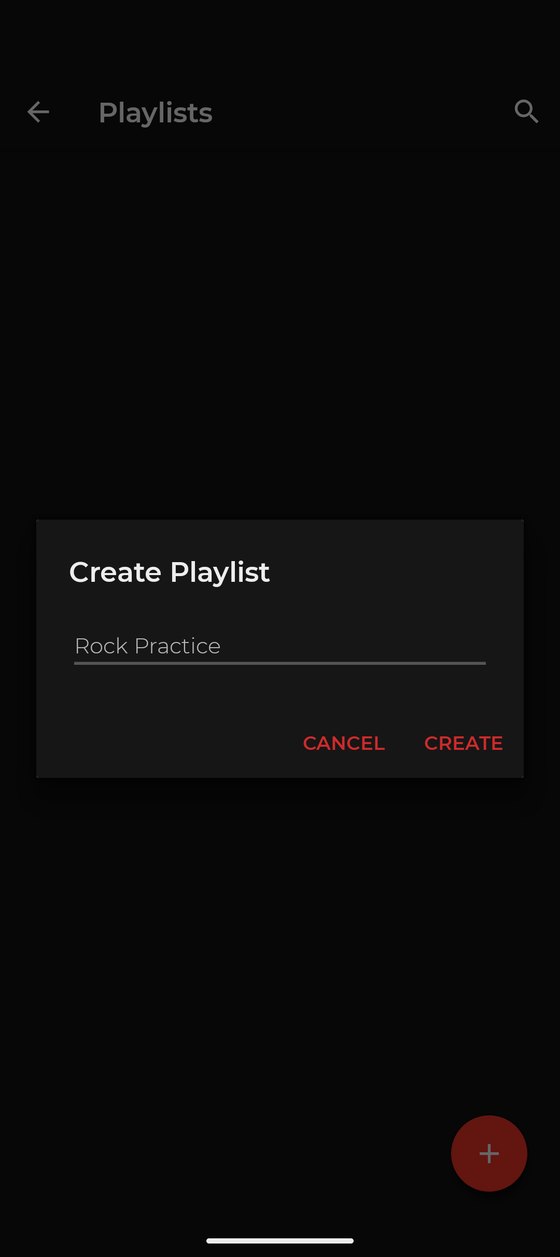
Step 3: Give the playlist a name, then tap Create. - 4
Open your new playlist
Tap the playlist to open it. A new playlist starts empty. Inside it, the red + button adds songs from your device library (steps 5 to 7), and the white shuffle button plays the playlist in random order once it has tracks.
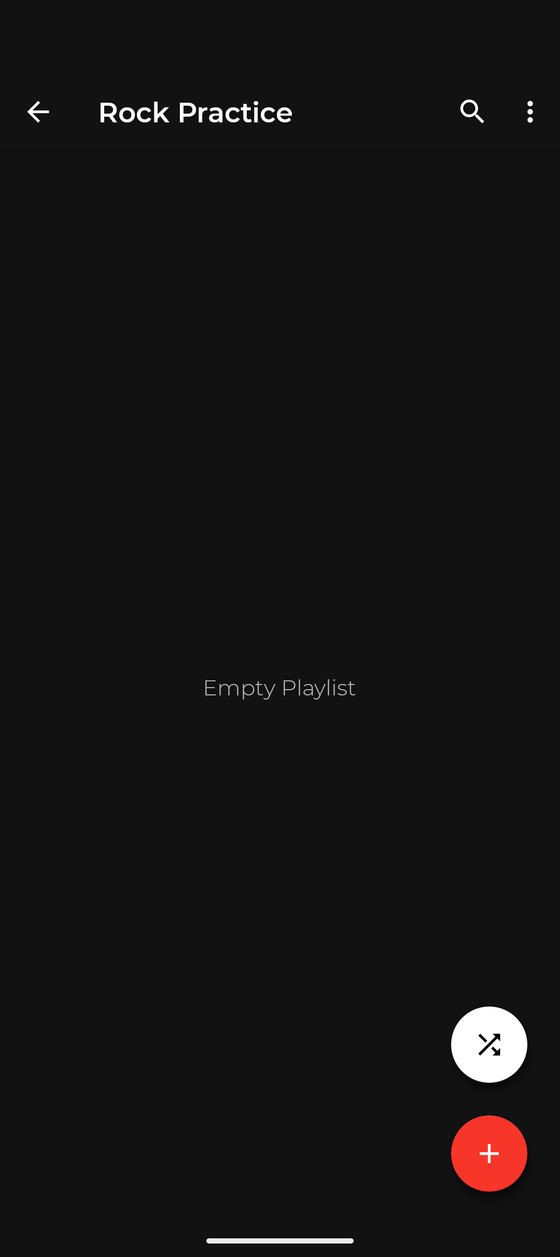
Step 4: The red + adds songs from your library. Backing tracks are added from the track itself (steps 8 and 9). - 5
Grant media permission so Backtrackit can scan your music
To add songs from your own library, Backtrackit first needs permission to access the music and audio on your device. This is how it scans your device and finds your tracks. Go to Library and tap Songs. When your phone asks "Allow Backtrackit to access music and audio on this device?", tap Allow. Without this permission, your device songs won't show up anywhere in the app, and the Select Songs screen will say No songs found.
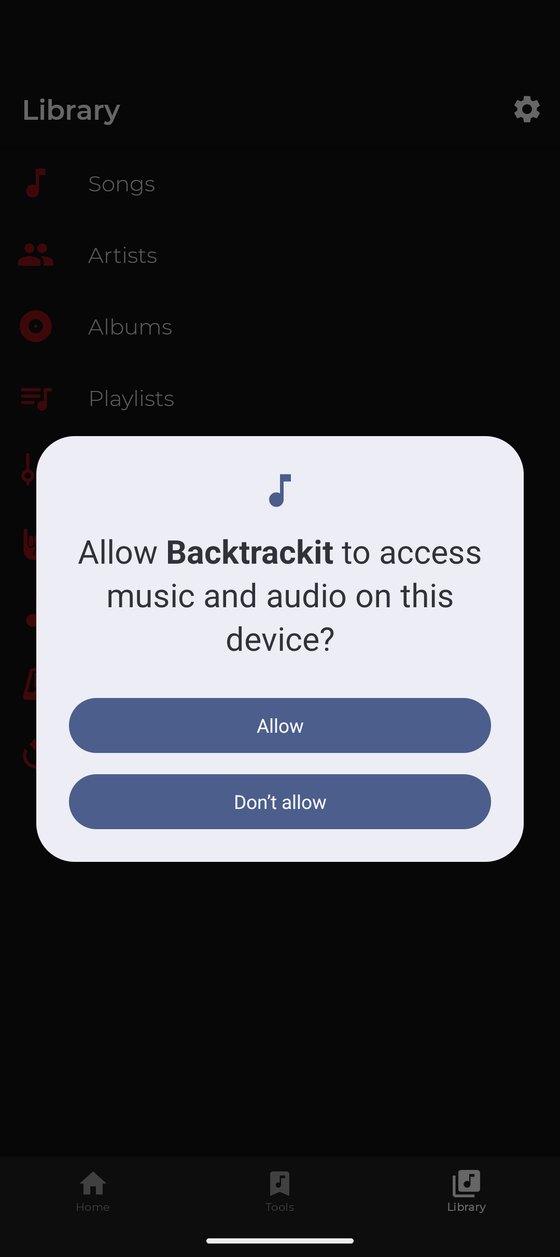
Step 5: Tap Allow so Backtrackit can scan the music on your device. - 6
Tap + inside the playlist and select your songs
Go back to Library → Playlists and open your playlist. Tap the red + button to open Select Songs, which lists the music Backtrackit found on your device. Tap the checkbox next to each song you want. The header counts how many you've picked. You can also use the search icon to find a song by name.
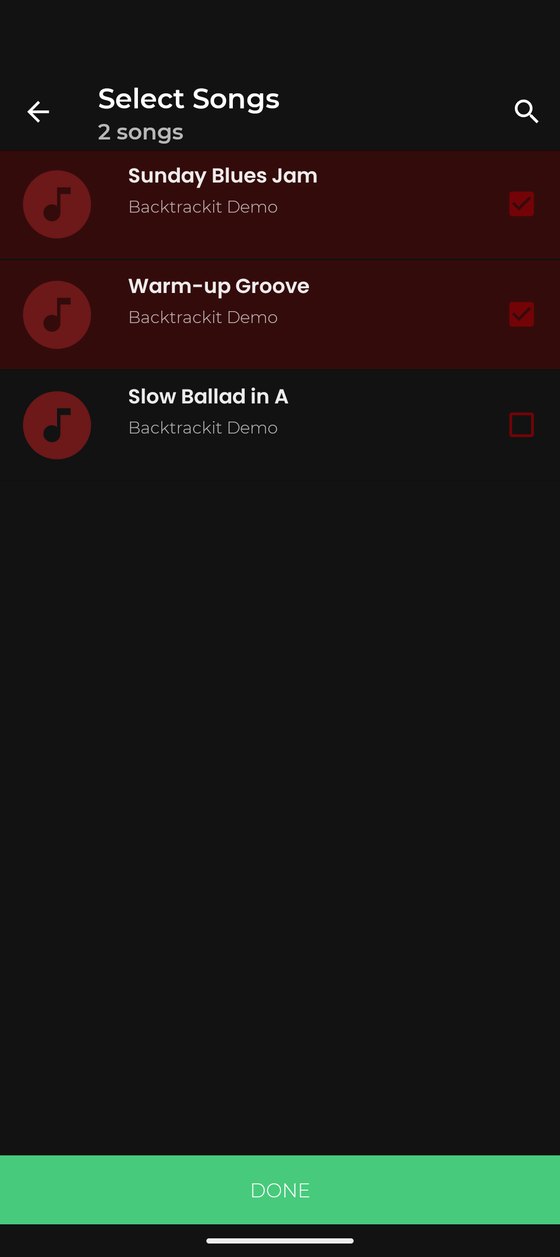
Step 6: Check the songs you want to add from your library. - 7
Tap Done to add them
Tap Done at the bottom of the screen. The songs are added to your playlist right away. Add more at any time with the red + button.
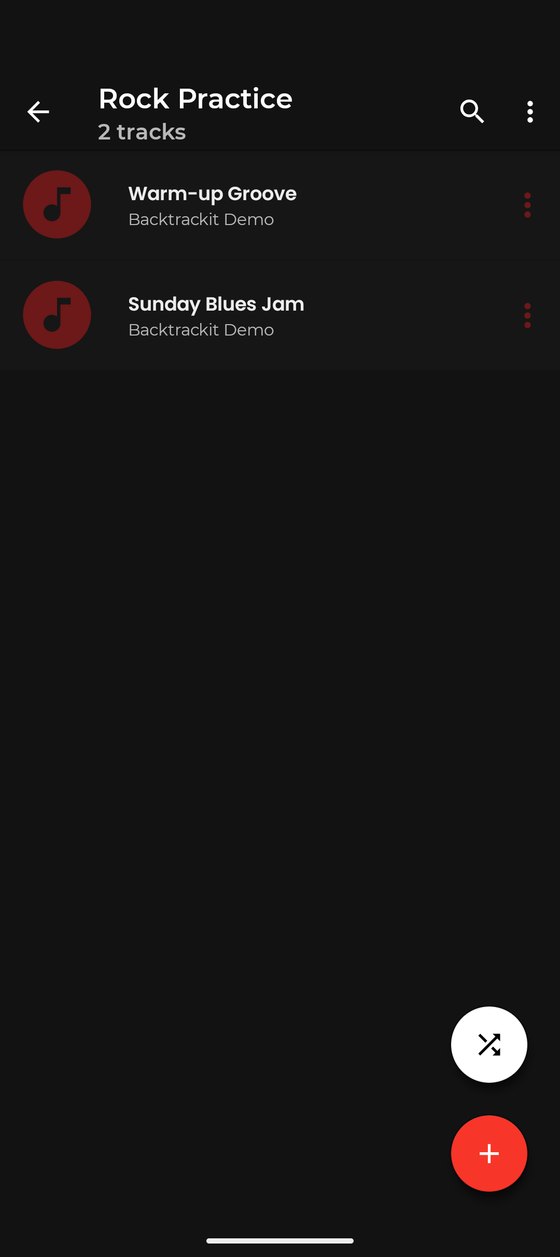
Step 7: Your library songs are now in the playlist. - 8
Add a backing track from a collection
On the Home tab, open a collection such as Rock, Blues, or Metal. Tap the ⋮ menu on any track card and choose Add to Playlist, then pick your playlist. You don't need to download the track first.
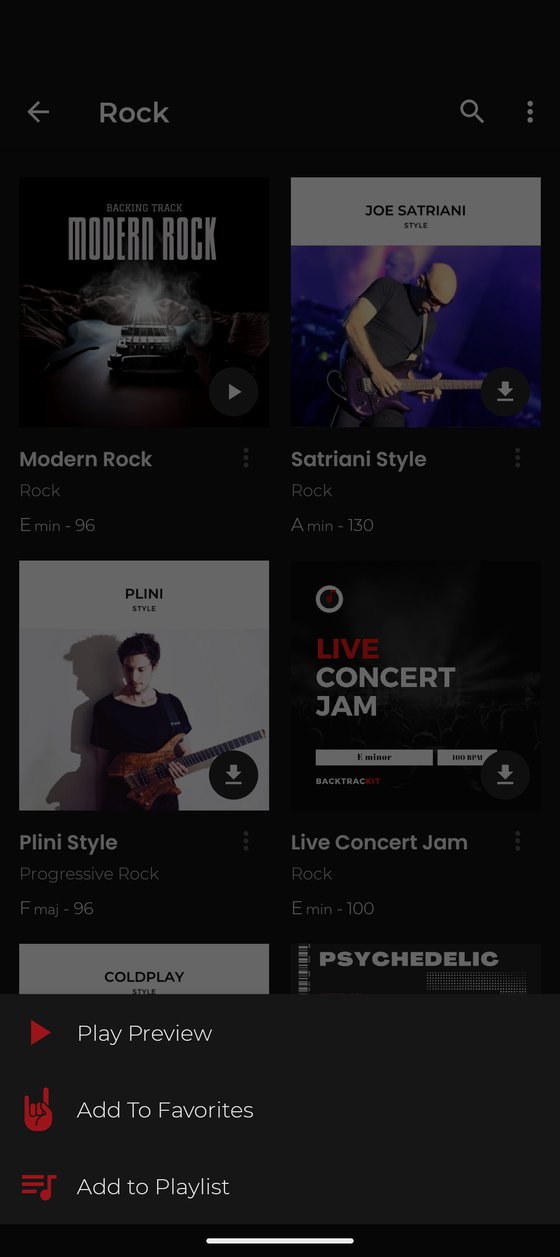
Step 8: Tap ⋮ on a track card, then choose Add to Playlist. - 9
Or add it from the track's page
You can also open a track and tap the Add to Playlist icon (a list with a plus) in the top-right corner. Pick your playlist from the list, or tap New Playlist to create one on the spot.
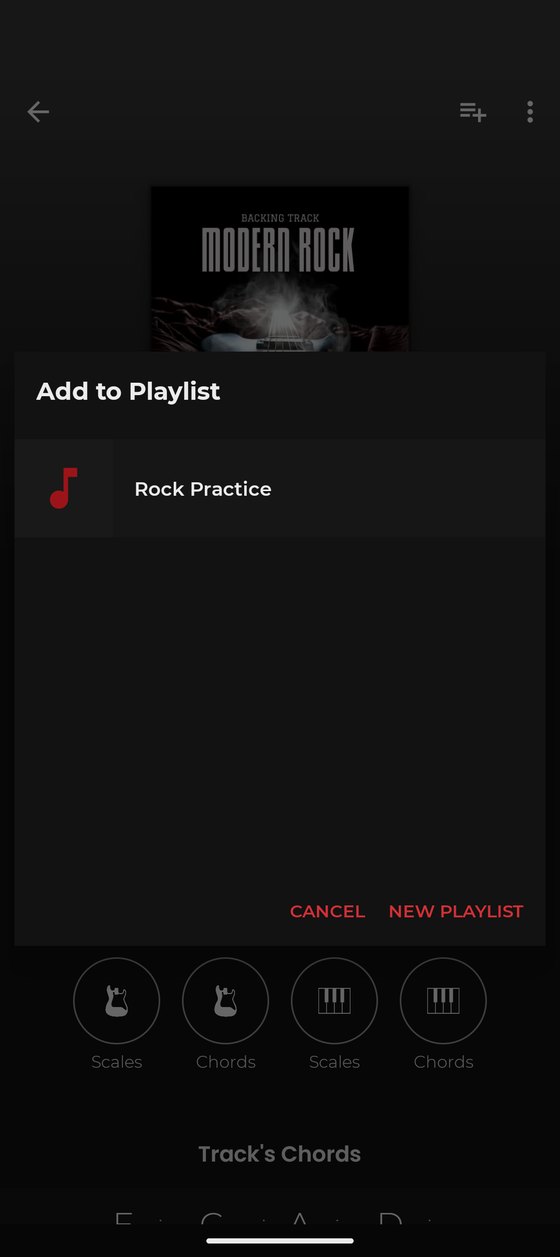
Step 9: Choose the playlist, or tap New Playlist to make another. - 10
Check your playlist
Open the playlist to see everything in it. Each track shows its key and tempo, so it's easy to build a set that flows. Repeat steps 8 and 9 to keep adding tracks.
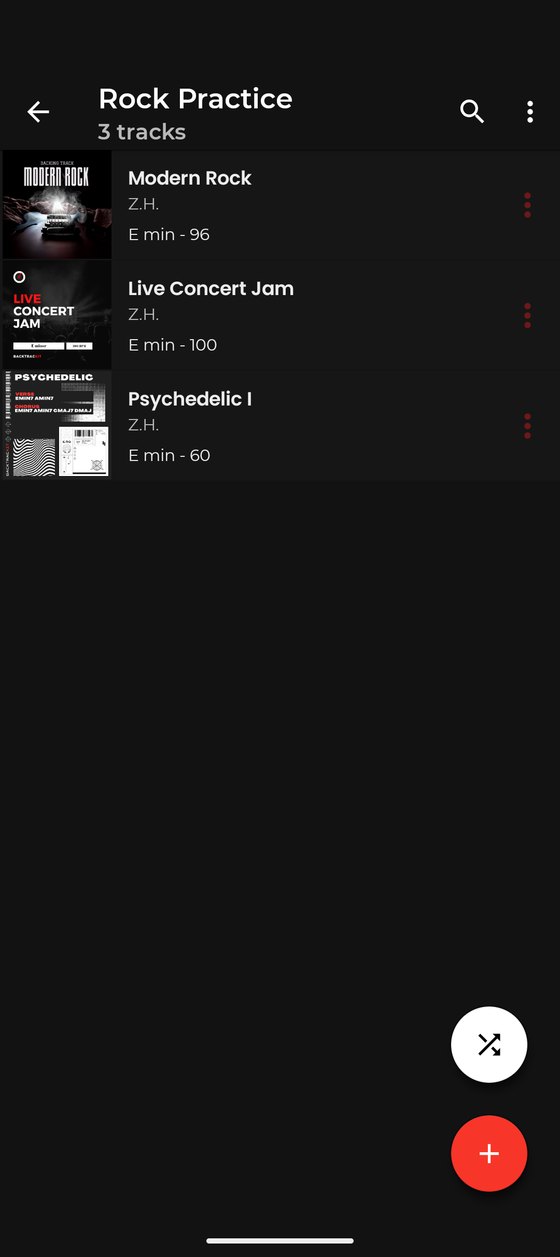
Step 10: Your playlist, with the key and tempo of every track. - 11
Play your playlist
Tap a track to start playing. Use the skip buttons to move between tracks, and tap the tempo, key, or EQ controls in the player to adjust each track for your practice.
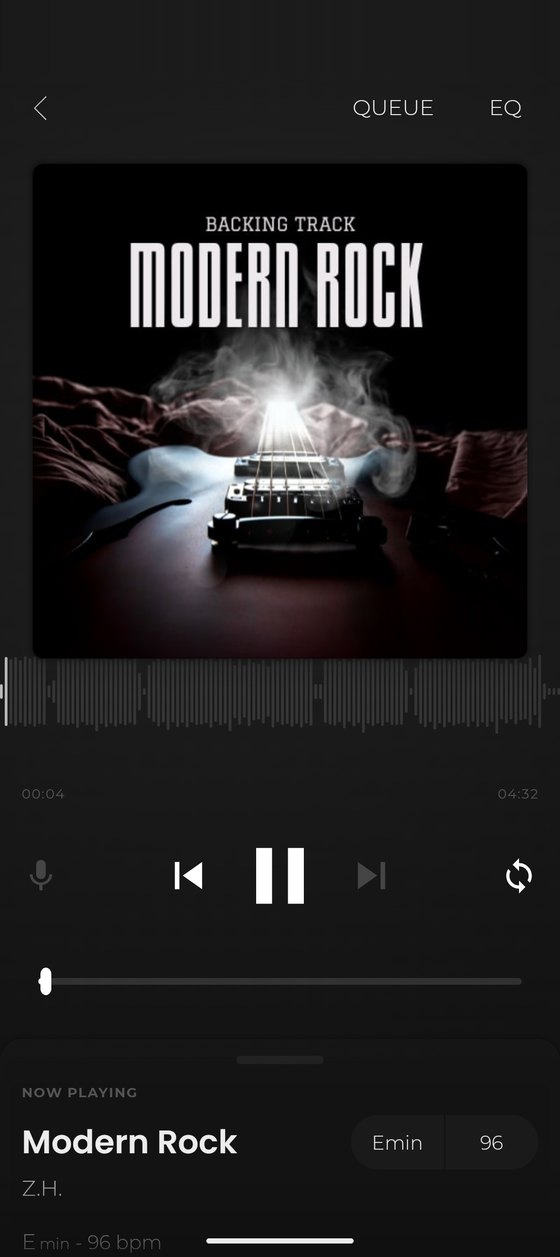
Step 11: Tap a track to play it, then tweak tempo, key, or EQ as you practice.
Tips for better practice playlists
- If your own songs are missing, check that Backtrackit has media permission in your phone's Settings. It can't scan your device without it.
- Name playlists after what you're working on (Blues in A, Slow shred, Warm-up) so you can start a session in two taps.
- Group backing tracks by key or tempo. The key and BPM appear next to every track in the playlist, which makes it easy to build a set that flows.
- Use Duplicate on the Playlists screen to make a faster or harder version of a playlist without starting from scratch.
- Once a track is playing, slow it down or change its key from the player. See the guides on changing the BPM and changing the EQ.
Frequently asked questions
How do I make a playlist in Backtrackit?+
Open the Library tab, tap Playlists, tap the + button, type a name, and tap Create. Then add tracks from a track's menu or from the playlist's + button.
Can I add backing tracks to a playlist?+
Yes. Tap ⋮ on a track card and choose Add to Playlist, or open the track and tap the Add to Playlist icon in the top-right corner. You don't need to download the track first.
Can I add my own songs to a playlist?+
Yes. Open the playlist, tap the red + button, select songs from your device's music library, and tap Done. Backtrackit needs your permission to access music and audio on your device so it can scan your tracks. Tap Allow when prompted.
Why don't my songs show up when I add to a playlist?+
Backtrackit can only see the music on your device after you grant media permission. If you tapped Don't allow, open your phone's Settings, find Backtrackit under Apps, open Permissions, and allow access to music and audio (on iOS, allow access to your media library). Then reopen the app and your songs will appear. Songs also need to be stored on the device itself.
How do I rename, duplicate, or delete a playlist?+
On the Playlists screen, tap the ⋮ menu next to the playlist and choose Rename, Duplicate, or Delete.
Can I shuffle a playlist?+
Yes. Open the playlist and tap the white shuffle button to play its tracks in random order.
Related guides
Build your practice playlist in the app
Download Backtrackit, collect your favorite backing tracks into playlists, and start every session with the right tracks queued up.