How to Remove Vocals from Any Song
You can remove vocals from any song by splitting it into separate stems and muting the vocal track. In Backtrackit, open Tools, tap Track Splitter, choose 4 Tracks Separation (or 2 Tracks), pick your song, and drag the Vocals fader down.
Quick facts
- App
- Backtrackit (iOS, Android)
- Tool
- Track Splitter
- Required mode
- 2 Tracks (vocals + everything else) or 4 Tracks Separation
- Action
- Drag the Vocals fader down to mute it, or keep it up and lower the rest to isolate it
- Processing time
- About 1 to 2 minutes
- Result
- An instrumental or karaoke version to sing or play over, or export
- 1
Open the Tools tab and tap Track Splitter
Open Backtrackit and tap the Tools tab in the bottom navigation. Under Practice Tools, tap Track Splitter. It's labeled Track Splitter (Stems) on iOS and Track Splitter (Karaoke Maker) on Android. This is the AI stem separator that splits a full song into its instruments.
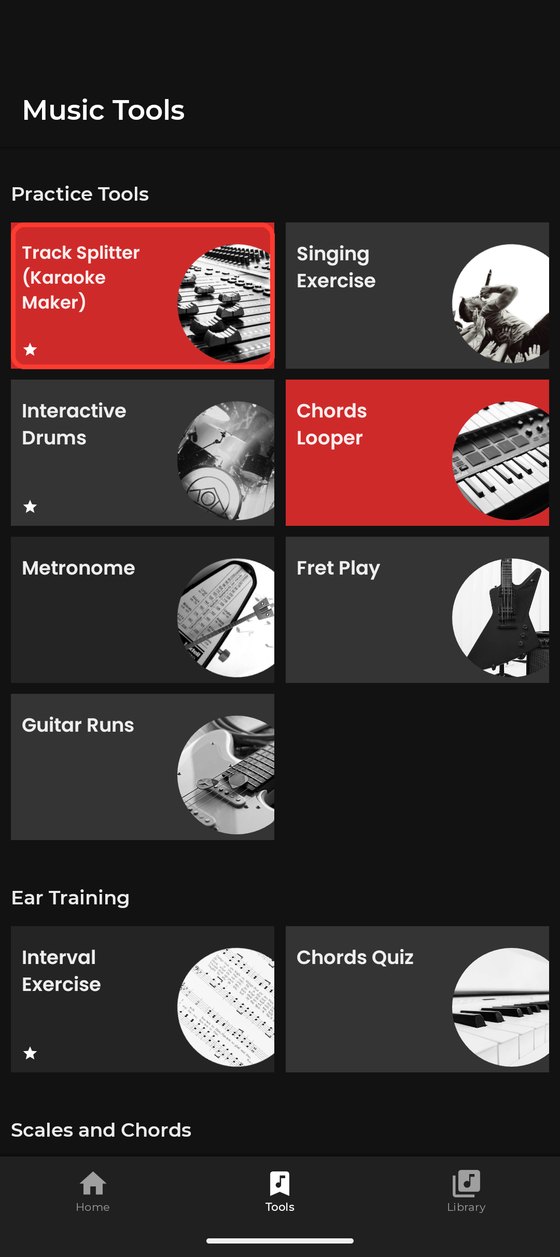
Step 1: Open Tools and tap Track Splitter. - 2
Choose "4 Tracks Separation" (or 2 Tracks)
On the Track Splitter screen, choose 4 Tracks Separation. 4 Tracks Separation splits the song into Vocals, Drums, Bass, and Other (everything else, such as guitars and keys). If you only need vocals and the rest of the song, 2 Tracks Separation also works: it gives you two faders, Vocals and Other. Use 4 Tracks if you also want control over drums and bass.
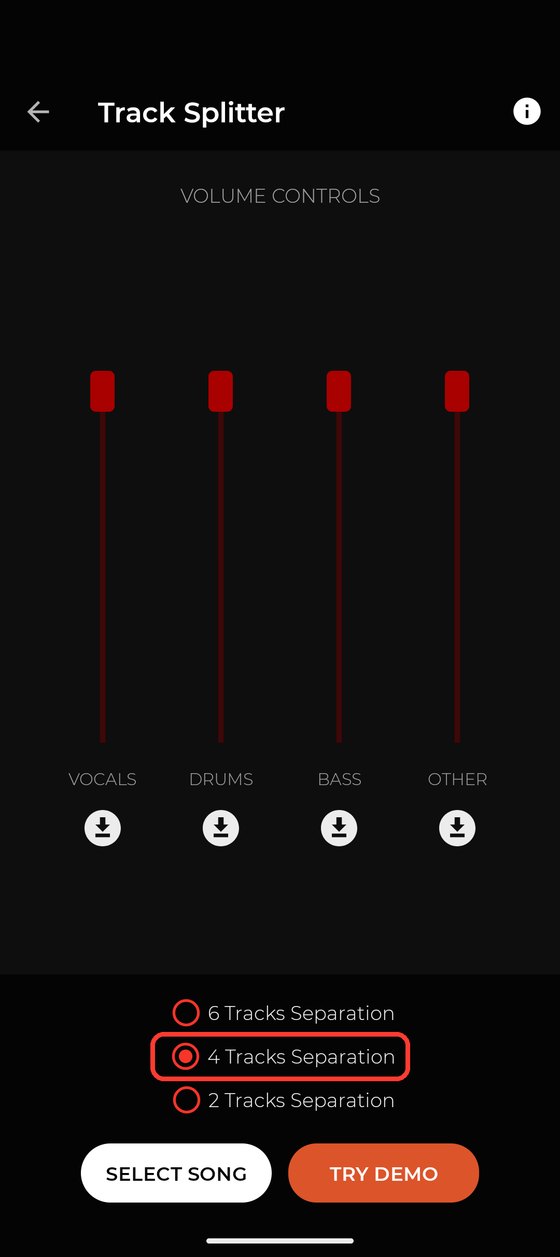
Step 2: Choose 4 Tracks Separation (or 2 Tracks for a simple vocals and backing split). - 3
Tap "Select Song"
Tap Select Song at the bottom of the Track Splitter screen. You can pick a song that's already on your device or import an audio file.
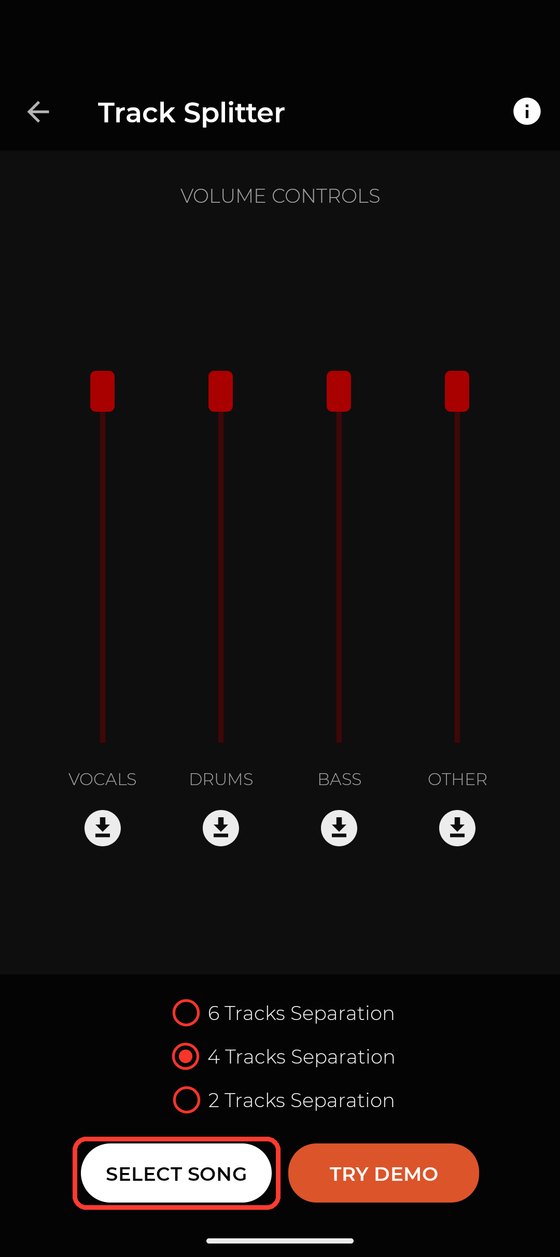
Step 3: Tap Select Song to choose the song you want to split. - 4
Pick the song, or import a file
Choose the song from the list. To see your own music here, Backtrackit needs permission to access the music and audio on your device. Tap Allow when prompted so your tracks can be scanned. If the song isn't in your library, tap Import from Files and pick an audio file such as an MP3, WAV, or M4A.
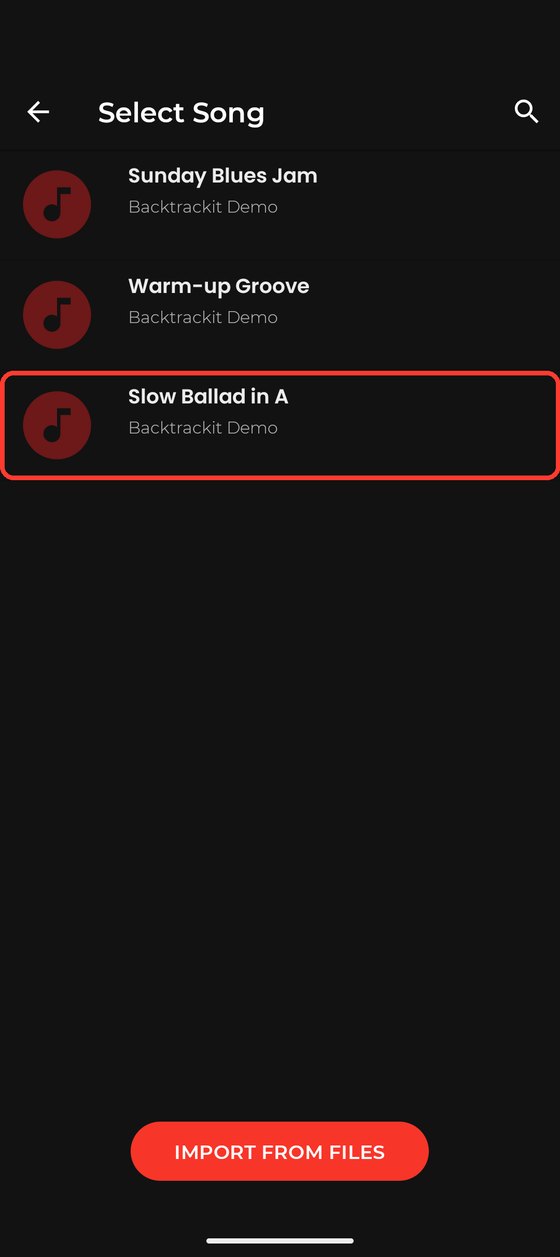
Step 4: Pick a song from your library, or tap Import from Files. - 5
Wait for processing
Splitting usually takes 1 to 2 minutes. You can leave the screen while it works. When the split is done, you'll get a notification, and the result is saved under Split Tracks in your Library so you can come back to it any time.
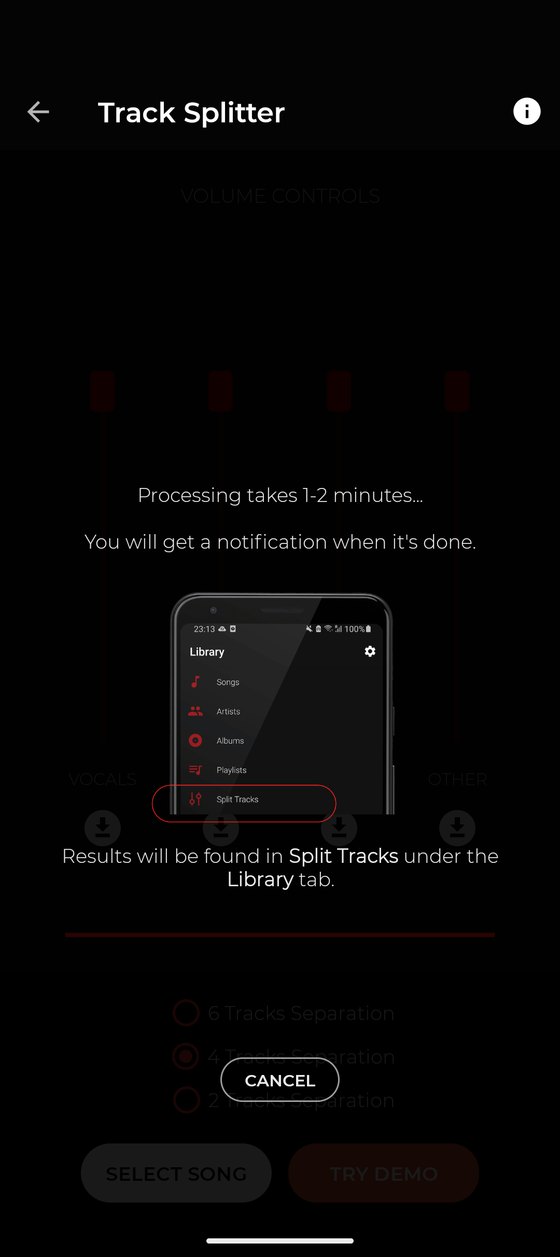
Step 5: Wait while the song is split. Results are saved in Split Tracks. - 6
Mute the Vocals track
When processing finishes, the mixer shows the Vocals fader next to the instrument faders. Press play, then drag the Vocals fader all the way down. The singer drops out and the band keeps playing, which gives you an instrumental or karaoke track. To study the vocal line instead, raise Vocals and pull the other faders down so you hear the singer on their own.
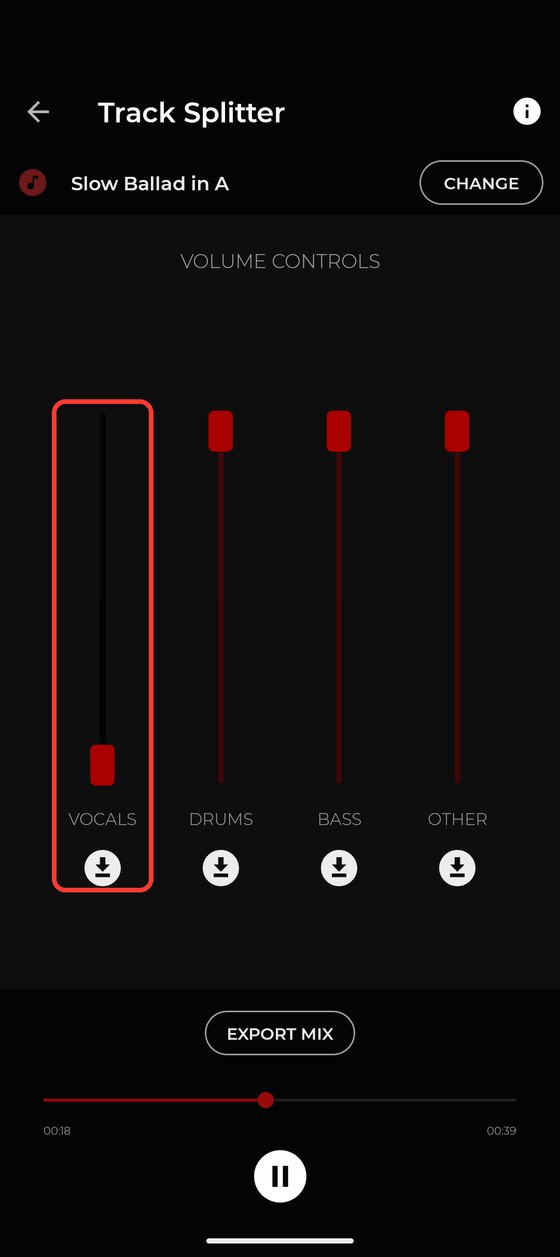
Step 6: Pull the Vocals fader down to remove the vocals from the mix. - 7
Export the instrumental or the vocal stem (optional)
Tap Export Mix to save the song with your fader settings, so muted vocals are baked in. On Android, an Export Complete message shows where the file was saved. You can also tap the download icon under the Vocals label to save the isolated vocal stem on its own.
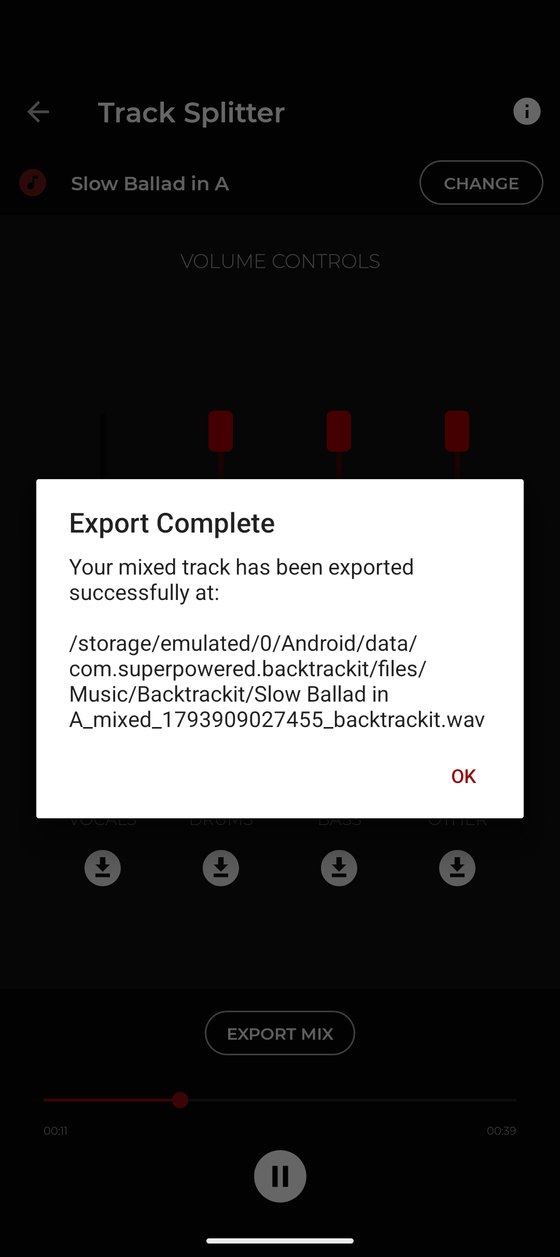
Step 7 (optional): Export the instrumental. On Android, a message shows where the file was saved.
Tips for removing vocals from a song
- Use 2 Tracks Separation when you just need an instrumental. It's the simplest split: vocals on one fader, everything else on the other.
- Lower the Vocals fader instead of muting it completely if you want a faint guide vocal to sing along with.
- Listen on headphones first. Stem separation is AI-based, so you may hear a faint trace of backing vocals or reverb in dense mixes.
- Isolate the vocals (raise Vocals, lower the rest) to learn the melody or phrasing before you sing or play it.
Frequently asked questions
Can I remove vocals from any song?+
Yes. Backtrackit's Track Splitter can separate the vocals from most full mixes: studio recordings, live tracks, and files you import from your phone. Split the song, then mute the Vocals fader to get an instrumental version.
What is the best way to remove vocals from a song?+
Use AI stem separation rather than a phase-cancelling trick or a karaoke filter, which often remove the bass and kick along with the voice and leave artifacts. In Backtrackit, open Tools, tap Track Splitter, choose 4 Tracks or 2 Tracks Separation, split the song, then pull the Vocals fader down.
Which separation mode do I need to remove vocals?+
Any of them. 2 Tracks Separation splits the song into Vocals and Other. 4 Tracks Separation also splits the rest into Drums, Bass, and Other. Choose 2 Tracks for a quick instrumental, or 4 Tracks for more control.
How long does it take to remove vocals from a song?+
Splitting usually takes about 1 to 2 minutes. You can leave the processing screen, and the finished stems appear under Split Tracks in the Library.
Can I export an instrumental version?+
Yes. After you pull the Vocals fader down, tap Export Mix and save the file. You can also export the isolated vocal stem with the download icon under the Vocals label.
Why don't I see my songs when I tap Select Song?+
Backtrackit needs permission to access music and audio on your device so it can scan your tracks. Allow it when prompted, or enable it in your phone's Settings. You can also tap Import from Files to choose an audio file directly.
Related guides
Turn any song into an instrumental
Download Backtrackit, split any song into stems, and sing or play over a vocal-free version.